

Download the Accessible.org sample accessibility audit report in Excel (opens in new tab). This spreadsheet is populated with sample accessibility issues and contains the following columns:
- Issue No. – Sequential identifier for tracking individual accessibility issues
- Location – Page section or component where issue occurs
- Page URL – Specific web address where the issue was found
- Environment Issue – Environment combinations such as screen reader and browser that reproduced the issue
- Applicable Code – HTML/CSS code snippet of the issue
- WCAG – Web Content Accessibility Guidelines success criterion
- Users Affected – Users the disabilities affected by the issue
- Recommendation – Suggested fix or remediation steps
- Screenshot – Screenshot or screen recording of the issue
- Notes – Any additional context that doesn’t fall in the above columns
The Accessible.org audit report format is standard across the accessibility industry. Some reports may have more or less columns (or differently named columns), but the essential data of what the issue is and where the issue is located will be common in all accessibility audit reports.
The Accessibility Tracker platform converts your accessibility audit report into a live, dynamic online document. Once converted inside of Tracker, you can:
- assign issues to team members
- update the status of an issue
- sort by User Impact or Risk Factor prioritization formulas
- filter by only select accessibility issues (e.g., only WCAG 1.3.1 issues)
- comment and write notes on issues
- use AI to help fix each individual issue
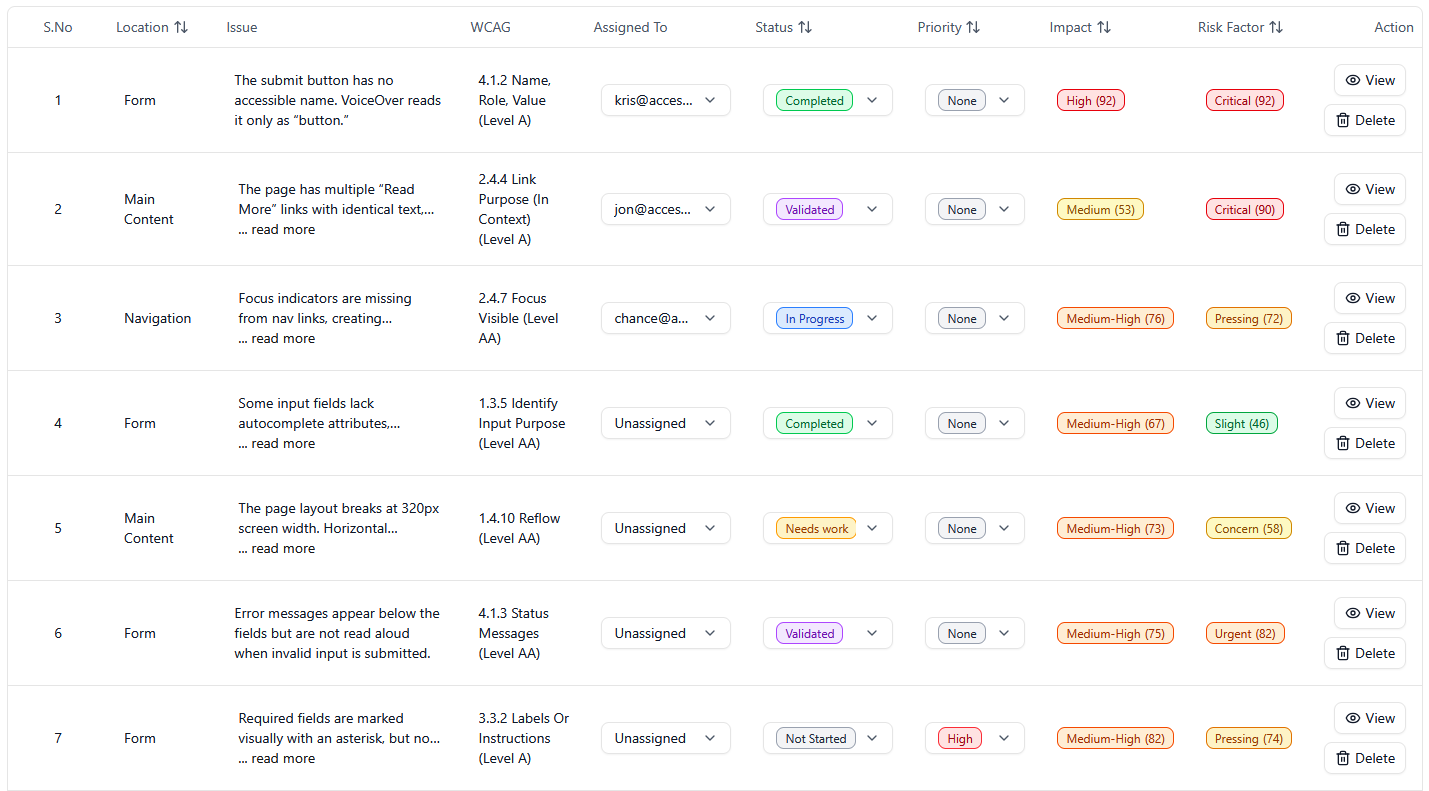
The screenshot below shows you an audit report transposed inside of Tracker. Here we’re looking at the table view. We can also look at the individual issue with all relevant data for that specific issue.
Audit Report in Tracker Dashboard Description
Accessibility audit issues table showing 7 issues found across different sections of a website. The table displays columns for serial number, location (Form, Main Content, Navigation), issue descriptions, WCAG success criteria, assigned team members, status indicators (Completed, Validated, In Progress, etc.), priority levels (None, High), impact ratings (ranging from Medium to Critical with numerical scores), and risk factors (Critical, Pressing, Slight, etc.).
The issues range from accessibility problems like missing button names and duplicate link text to layout concerns like page breaks at certain screen widths. Each row shows the current workflow status with colored status badges and includes action buttons to view or delete individual issues.
Report Role
Accessibility reports contain extremely valuable data that tells digital asset owner / operators exactly what issues need to be fixed to make their digital assets fully WCAG conformant.
Each issue in an audit report results from an instance of non-conformance. In rare cases, an issue will be identified that isn’t technically non-conformant, but it’s considered best practice to fix the issue. This will be clearly marked.
As evidenced from above, an audit provider will provide as much information as possible to make it very easy to identify what exactly the issue is, where to locate the issue, and even offer a recommendation on how to fix the issue.
Accessibility Tracker also has an AI tool that specifically provides workarounds or alternative fixes.
Help
To start your accessibility audit, contact Accessible.org.